Google Sheets Editor Add-On
Available for Flex (SSIS) and Gems (Pre-built)
The COZYROC Cloud Google Sheets add-on lets you load data from your COZYROC Cloud data sources directly into your sheets, without writing scripts or setting up integrations.
Why Use This Add-on?
COZYROC Cloud can pull data from a multitude of external data sources — APIs, databases, cloud services — through data source packages and gems.
With this add-on you can:
- Query any TDS data source package directly from a Google Sheet sidebar
- Use a point-and-click interface to explore your data sources without writing SQL
- Write custom SQL for more advanced queries when needed
- Refresh data on demand
- Keep results in the sheet for further analysis, charts, or sharing
Prerequisites
Before you start using the add-on, make sure the following are in place.
1. A COZYROC Cloud account
Create a COZYROC Cloud account if you do not have one yet.
2. A Personal Access Token (PAT)
The add-on authenticates using a PAT instead of your password.
To generate one:
- Log in to COZYROC Cloud.
- Go to your Profile page and open the Personal Access Tokens section.
- Create a new token and copy it. Make sure to select the
TDSscope.
Keep the token in a safe place. You will need it during the add-on login step.
3. At least one data source available
The add-on queries data through the COZYROC Cloud TDS interface. You need at least one data source deployed before you can retrieve data. Options:
- Pre-built gems — ready-to-use packages from the COZYROC Gem Gallery that connect to popular services.
- Custom packages — packages you or your team have built and deployed to your workspace.
Getting Started
Step 1 - Installation
Inastall the add-on from the Google Workspace Marketplace.
Open the add-on from the Google Sheets menu: Extensions → COZYROC Cloud → Open.
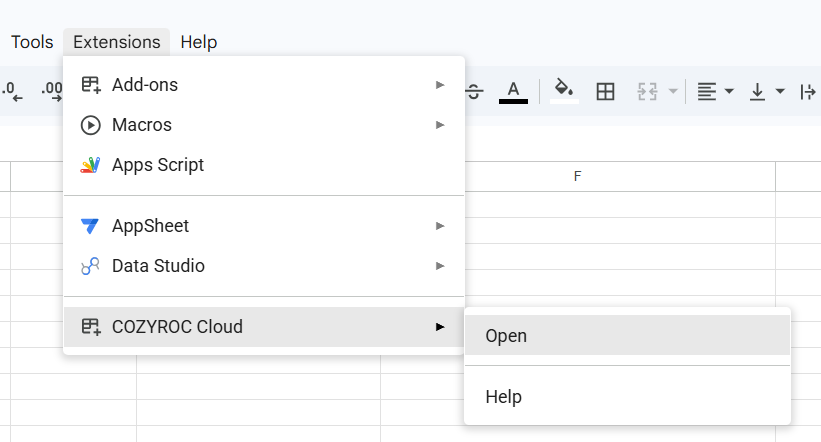
A sidebar will appear on the right side of the sheet. The sidebar walks you through a short setup sequence the first time you use it.
Step 2 — Log In
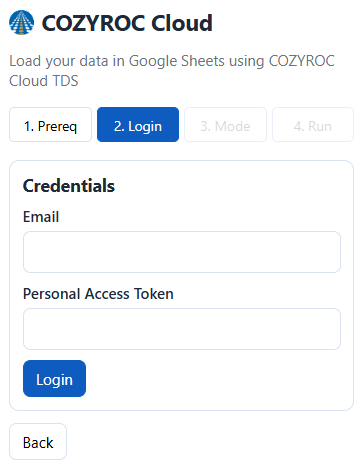
Enter the email address from your COZYROC Cloud account and your Personal Access Token (PAT). The add-on will remember you for future sessions until you log out.
Step 3 — Choose a Query Mode
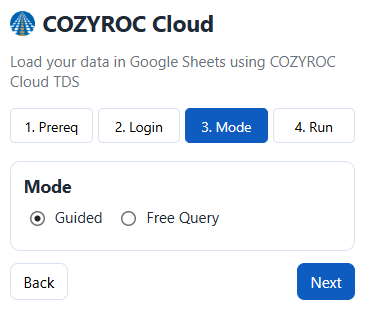
Select how you want to build your query: Guided mode or Free query mode. Both modes write results to the currently active sheet, replacing all content starting from cell A1.
Guided Mode
Guided mode is the default. It is designed for users who want to explore and query data without writing SQL.
How It Works
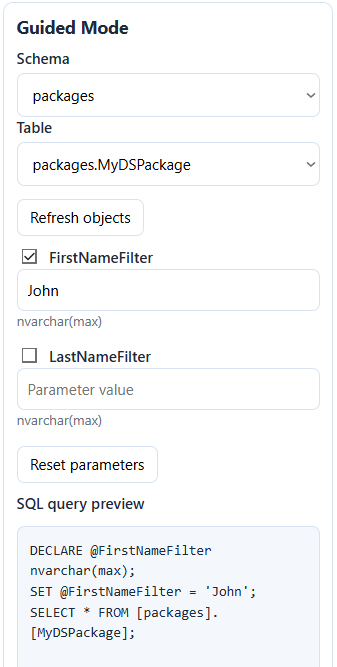
- Select a schema — Choose a schema from the dropdown. Available schemas include
packages,gemsandworkspace. Read more about schemas and table naming here. - Select a table — Once a schema is selected, the available tables populate in the next dropdown. Choose the one you want to query.
- Configure parameters (optional) — Some tables expose parameters that filter or shape the results. When parameters are available, they appear below the table selector. You can check or uncheck parameters to include or exclude them from the query.
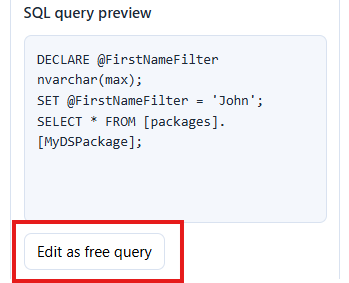
- Preview the generated SQL — A read-only preview shows the SQL query that will be executed based on your selections. This updates automatically as you change the table or parameters.
- Click Run now — Results are written to the active sheet.
Switching to Free Query Mode
If you want to customize the generated query, click Edit as free query. This copies the current generated SQL into the free query editor so you can modify it from there.
Free Query Mode
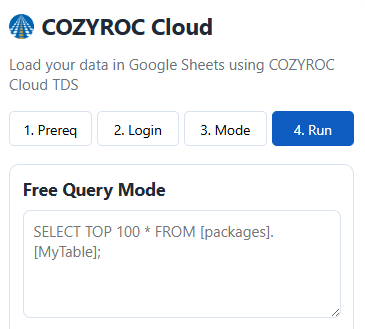
Free query mode is for users who want full control over the SQL they execute.
How It Works
- Type or paste a SQL query into the text area.
- Click Run now — the query is executed against your COZYROC Cloud TDS and results are written to the active sheet.
Query Restrictions
Only SELECT statements are permitted. If an unsupported SQL feature is used, the add-on will show an error message.
Example of a valid query:
SELECT TOP 100 * FROM [packages].[MyDsPackage];
Execution Options
These options apply to both modes and appear in the sidebar before you run the query.
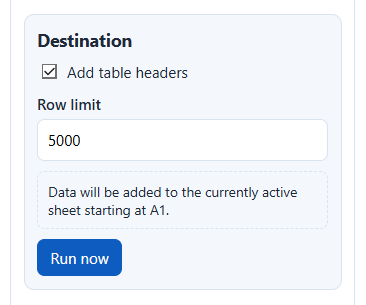
- Add table headers - Default: Enabled. Writes column names as the first row of the sheet.
- Row limit - Default: 5000. Maximum number of rows to retrieve. Can be increased up to 50,000.
Result Destination
Results always write to the currently active sheet, starting at cell A1. All existing content in the sheet is cleared before writing. To preserve existing data, switch to a different sheet tab before running.
Refreshing Data
The add-on does not run on a schedule. To refresh the data in your sheet, open the sidebar and click Run now again. This re-executes the same query and overwrites the sheet with the latest results.
Troubleshooting
The COZYROC Cloud menu does not appear in Extensions. The add-on must be installed from the Google Workspace Marketplace before it appears.
Login fails. Double-check that your email and PAT are correct. PATs can be revoked or expired — generate a new one from your COZYROC Cloud profile if needed.
No schemas or tables appear in Guided mode. Your account may not have any TDS packages deployed, or you may not have access to them. Contact your administrator.
Query is rejected in Free query mode.
Ensure the query is a SELECT statement with no modification keywords. See the Query Restrictions section above.
Results are truncated. The row limit is set below the number of rows returned. Increase the Row limit value (up to 50,000) and run again.